Step by step
- Start from a final PDF.Export the fee agreement, engagement letter or form to PDF. If it was built with fillable fields, keep them: good tools detect and reuse them.
- Place only the fields you need.Signature, initials on pages that need them, date, printed name, and any blanks the client must fill in (text or checkboxes). Mark optional fields optional. Every extra required field is a reason to stall.
- Decide whether you countersign.For agreements both parties sign, set the document to come back to you after the client signs, so the final copy carries both signatures.
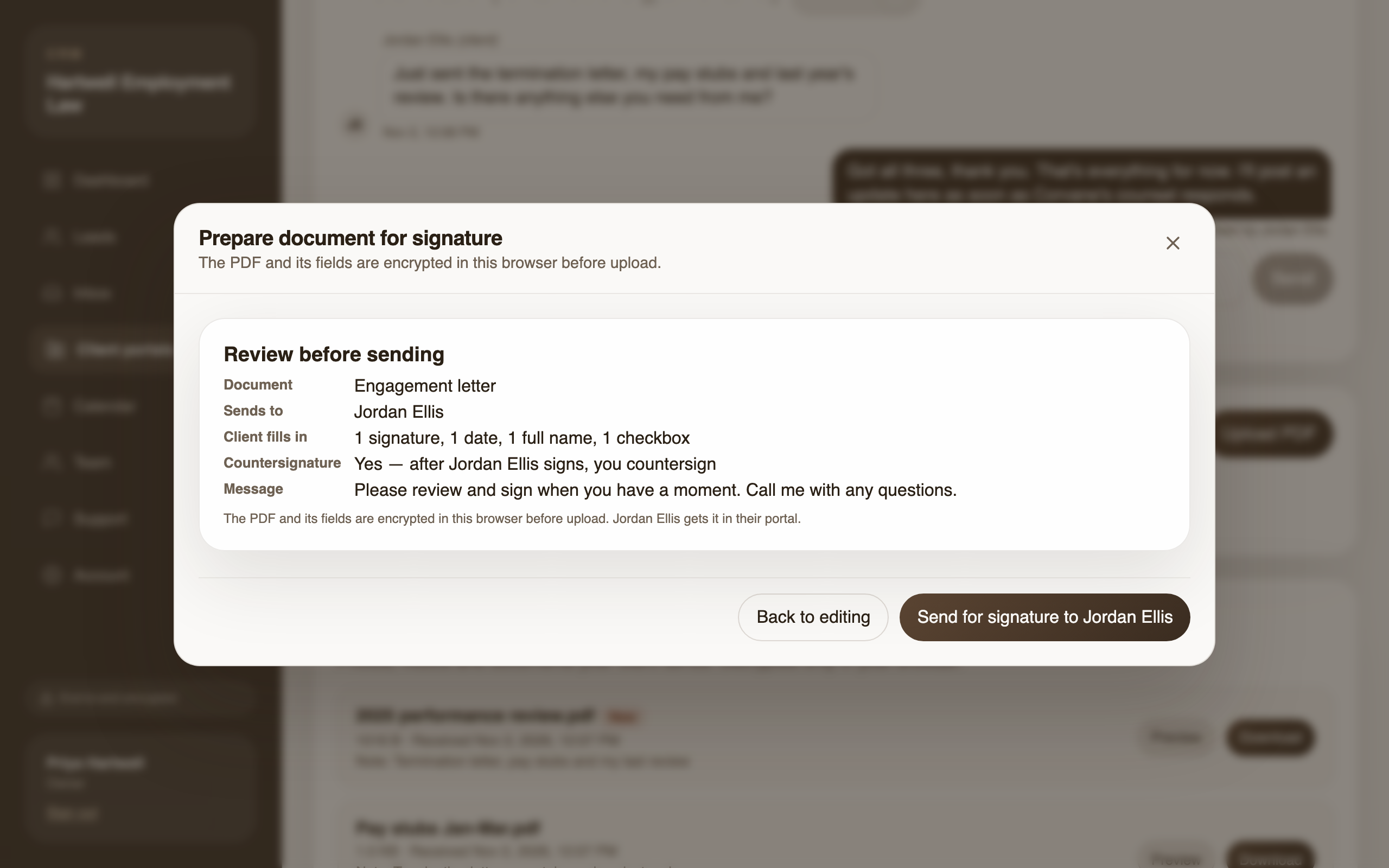
- Review before you send.Check the recipient, the field count and the countersignature setting. A wrong recipient is the one mistake you can’t take back.
- Send a link the client can open on a phone.Most clients will sign on their phone, within minutes of your text. A link that needs an account or an app loses some of them.
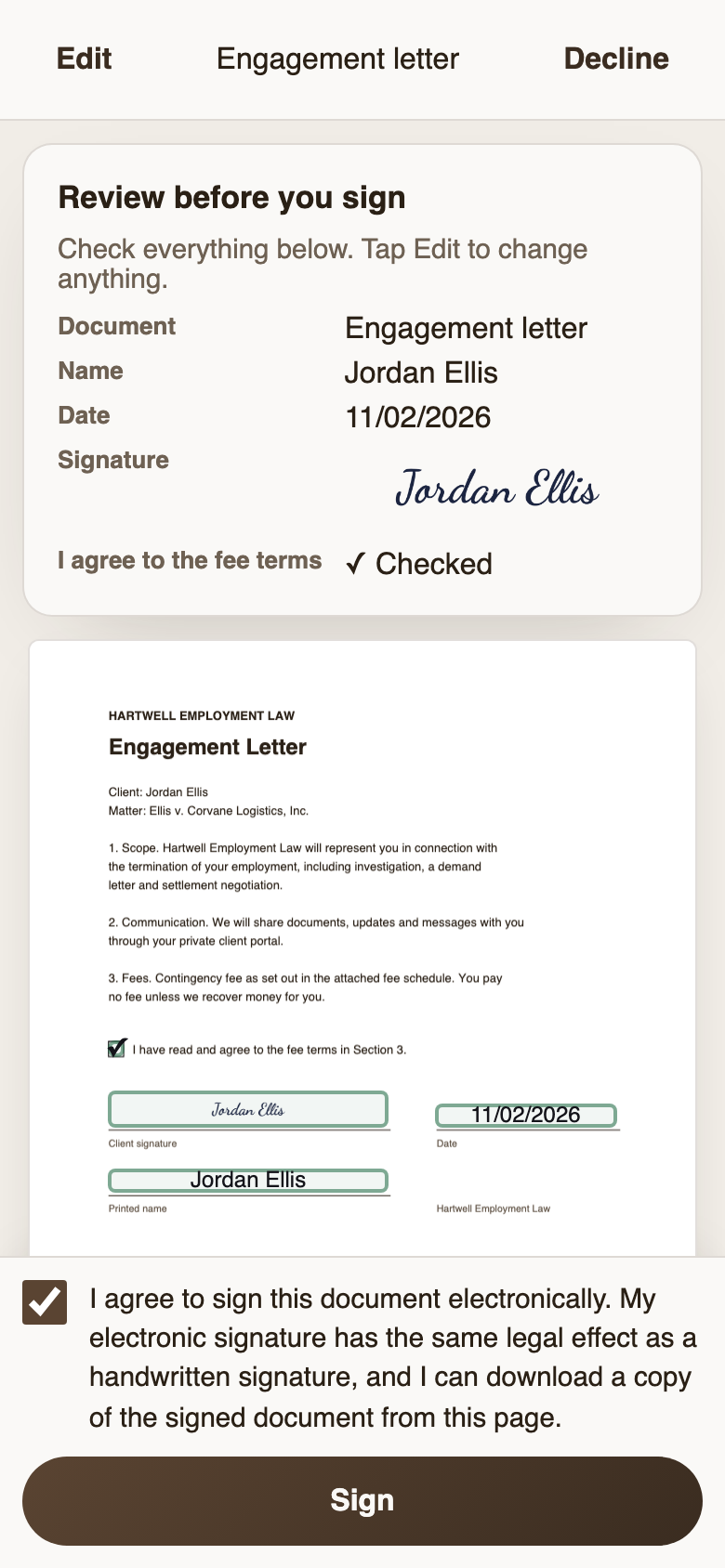
- Let the client review, then sign.The client fills in the fields, sees every value and page before the final step, gives consent to sign electronically, and signs.
- Remind, don’t chase.A polite automatic reminder after a few days recovers most stalled signatures. Cap reminders so it doesn’t become nagging.
- File the signed copy and the certificate.Download the executed PDF with its certificate of completion and save it to the matter.
Doing it in Brun
In Brun the document goes out inside the client’s portal, the same page where they send you files and read your updates. Upload the PDF and Brun detects any fillable fields; place signature, initials, date, name, text and checkbox fields; tick “needs my countersignature” if you sign too. A review step shows the recipient, the fields and the countersignature before anything sends.
The client can’t reach the final step until every required field is filled, then sees all of their answers with page previews before signing. The signed copy is stamped with a certificate of completion listing the fields they filled in. Both sides download it, and the client keeps access to it in the portal until it closes.
Reminders go out three days after sending, at most three per document. Because Brun never stores the client’s email address, the automatic reminder is sent the next time anyone at your firm opens that portal. You can also press Remind at any time. Every step (sent, viewed, signed or declined) is in the portal’s activity record.
The difference from a stand-alone e-signature service: the PDF, the filled-in values and the signature are encrypted in the browser, so Brun can’t read the agreement, and the signing step sits next to the rest of the client exchange instead of in a separate inbox. Compare Brun with DocuSign or with Adobe Acrobat Sign.
Brun’s v1 limits: one client signer per document (plus your countersignature), no signing order across several clients, and no templates library. If you need multi-party routing, a dedicated e-signature tool is the better fit.